Taking YLPT, step by step
This guide is for the adult, not the child. Every screen is in English, and there is a form an adult has to fill in before the test will open.
- How long
- No time limit · usually 30–40 minutes
- What it covers
- Listening and Reading/Writing
- Device
- Computer only (no phones or tablets)
- Result
- Not a score, but the exam to prepare next
Notices for guardians
There is a screen before the test where the adult has to do something.
Date of birth and nationality are yours to fill in
Before the test opens, a form asks for the child's details. The name and email address are already filled in, but Date of Birth and Where do you come from? (your nationality) are empty and the form will not move on until they are. The date is day, then month, then year.
Once you press Submit, the child's screen locks
The name, date of birth and nationality are greyed out afterwards, even if you log in again. It is not a dead end though: if something went in wrong, tell the centre and we can correct it.
You may log in on your child's behalf
An adult can sign in, fill in the form and run the sound check. What matters is that the child sits at the computer logged in with their own details, because the result attaches to that login.
The test is only submitted if it is finished
Closing the window before the last screen does not submit anything. Log back in with the same details and finish it. Once finished, the same login cannot start it again.
What to prepare
Only a computer will work
Phones, tablets (iPad and Android) and Linux will not open the test. You need Windows 11, or macOS 13 (Ventura) or later.
Browser
Windows takes Chrome, Firefox or Edge (93 or later); Mac and Chromebook take Chrome only. Academy and school computers often run an old browser, so check before the day.
Internet speed
2 Mbps upload and 2 Mbps download per child. If several children test on the same line at once, you need that much for each of them.
Headphones that fit a child
Closed-back, over-ear headphones work best. Adult-sized ones slide off, and a child holding them on with one hand is not listening properly. With USB headphones, check the day before that they actually make a sound.
A quiet spot and one adult
There is listening, so the room needs to be quiet. Stay with your child through the sound check, then let them work on their own.
You only need the first three steps of the check
Use the Cambridge Technical Check for step 1 (operating system and browser), step 2 (internet speed) and step 3 (audio). Step 4, the microphone check, is not needed for YLPT, because there is no speaking test.
Open the Technical CheckScreen by screen
From signing in to reading the result, in the order the screens actually appear. Unlike the adult CEPT, the details form comes first and the test opens after it.
Sign in
Enter Username, Password and Institution ID. The centre emails all three, and the Username is the email address used when registering.
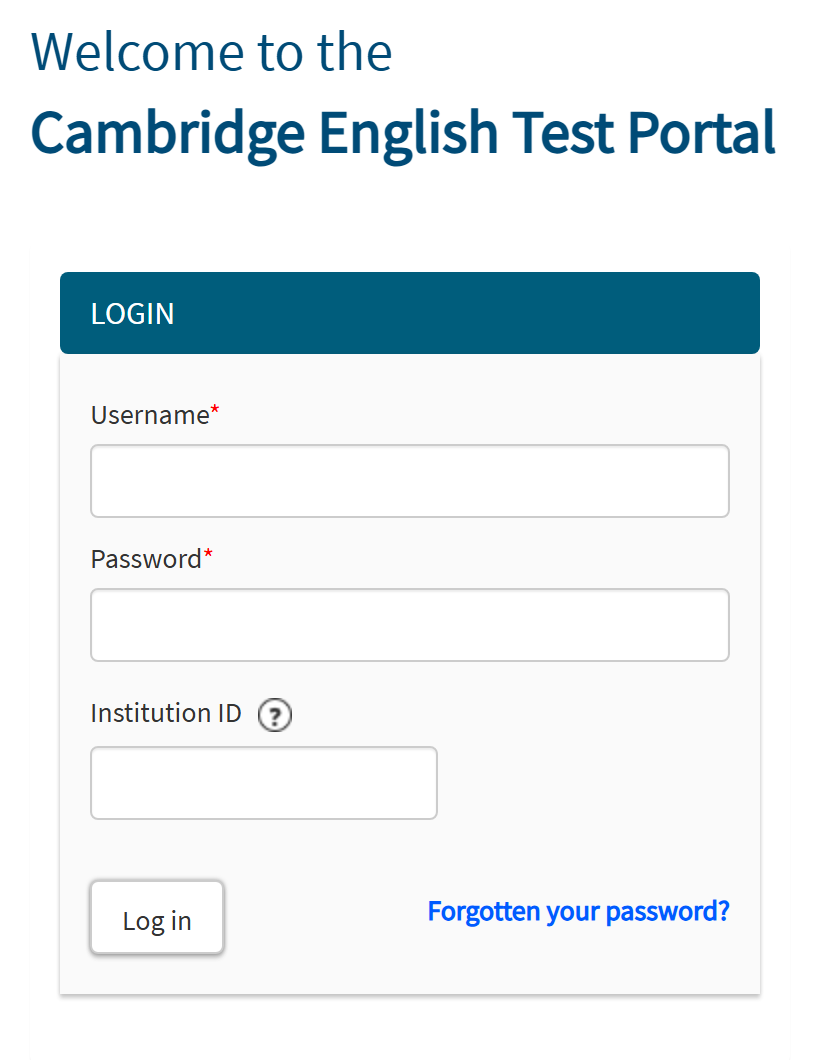
You cannot get in without the third one, the Institution ID. View full size Accept the terms
An adult reads this and ticks the box.
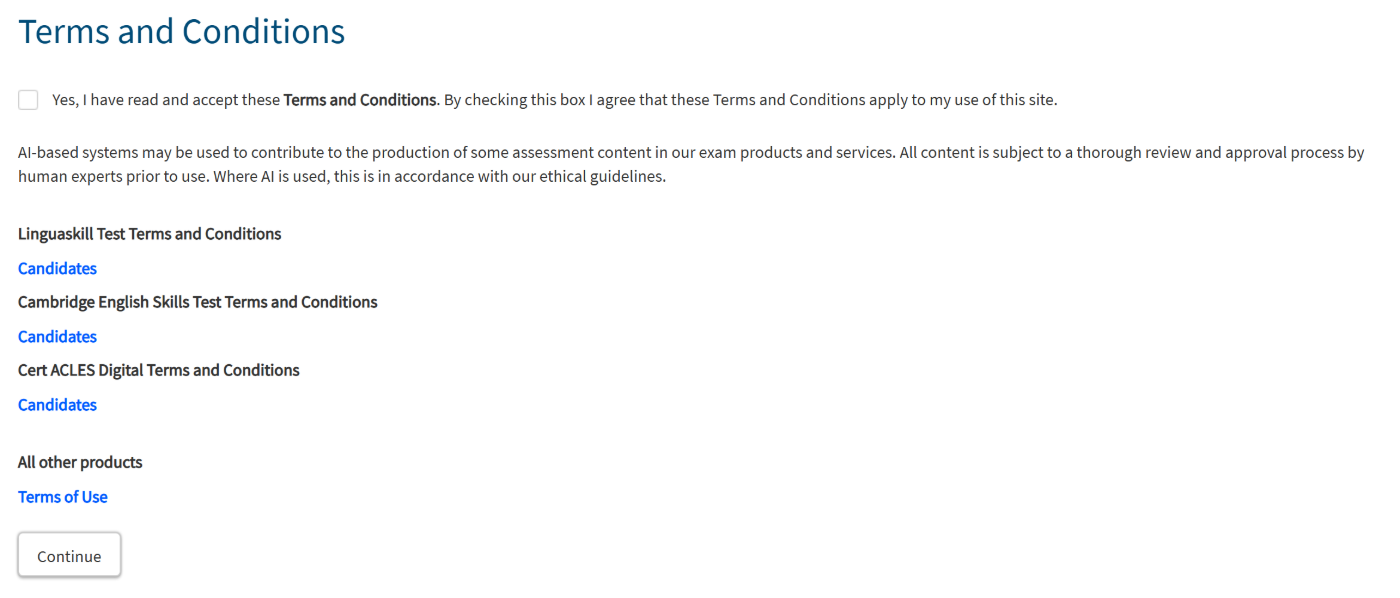
Continue stays inactive until the box is ticked. View full size Click the test card
The child's test sits as a card on the Active tab. Click it to go on.
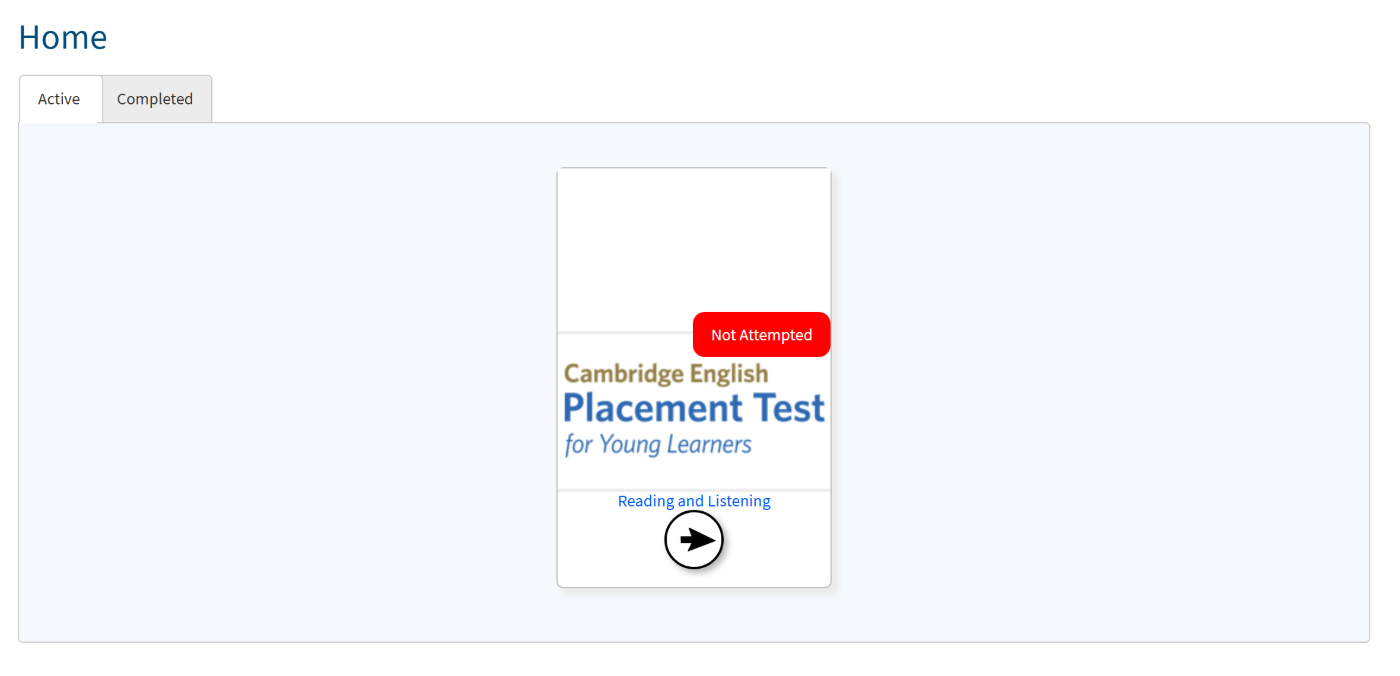
The red Not Attempted only means the test has not been taken yet. View full size Fill in the child's details
The test does not open yet; the details form comes first. The name and email are already filled in, and the two fields marked Date of Birth and Where do you come from? are blank. The rest (Gender, Candidate ID and so on) can be left empty. Then click Submit.
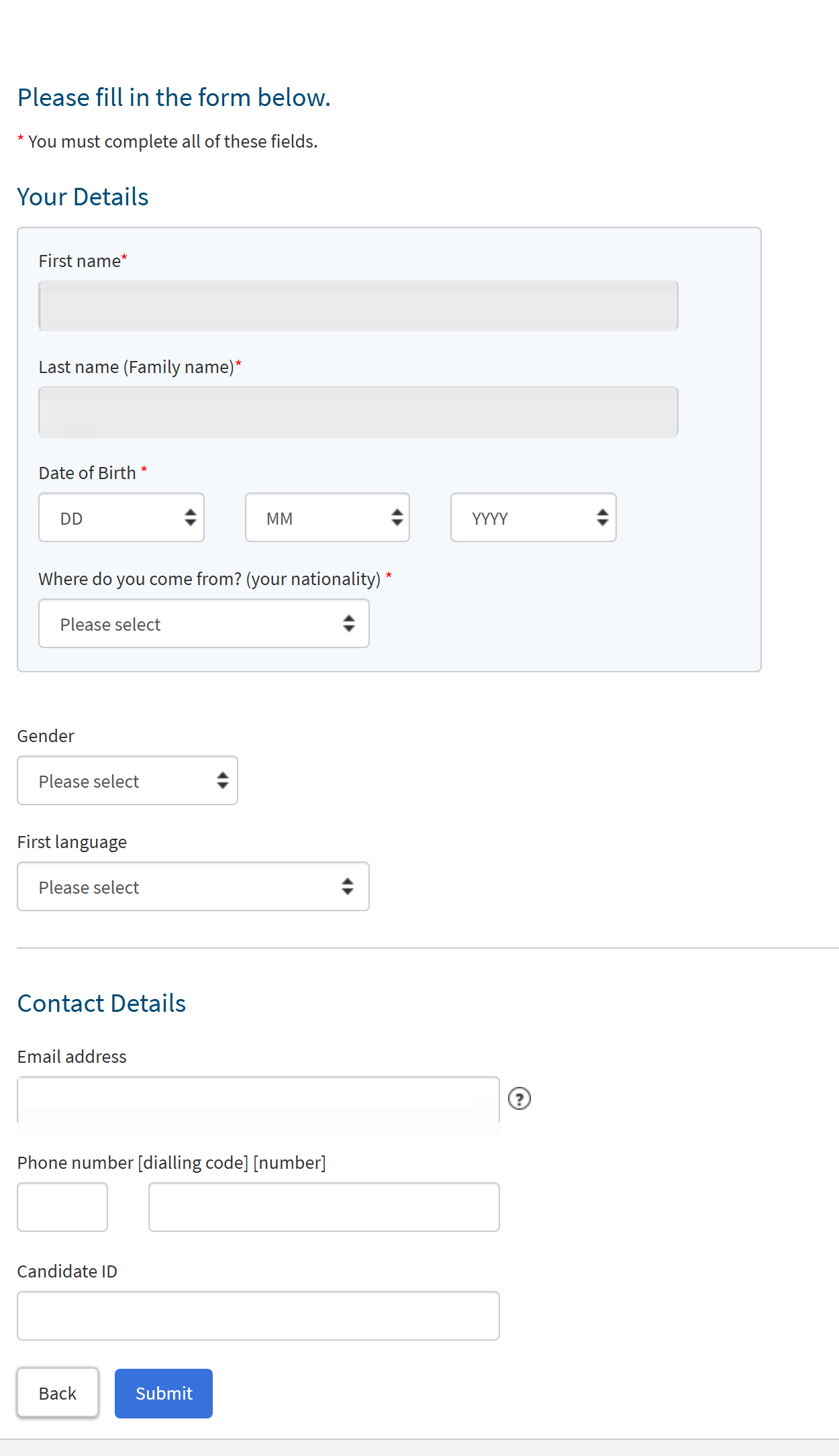
The two grey boxes at the top are the name, already filled in and masked here because it is personal. The two fields below them are the adult's job. View full size Click Open on the Test Day Timeline
Open starts the test. It is the same Open if you have to come back part-way through.

Open is the small button to the right of the orange play symbol. View full size Check the sound
Put the headphones on your child and click Play Sound. If they cannot hear it, turn the volume up and click again.
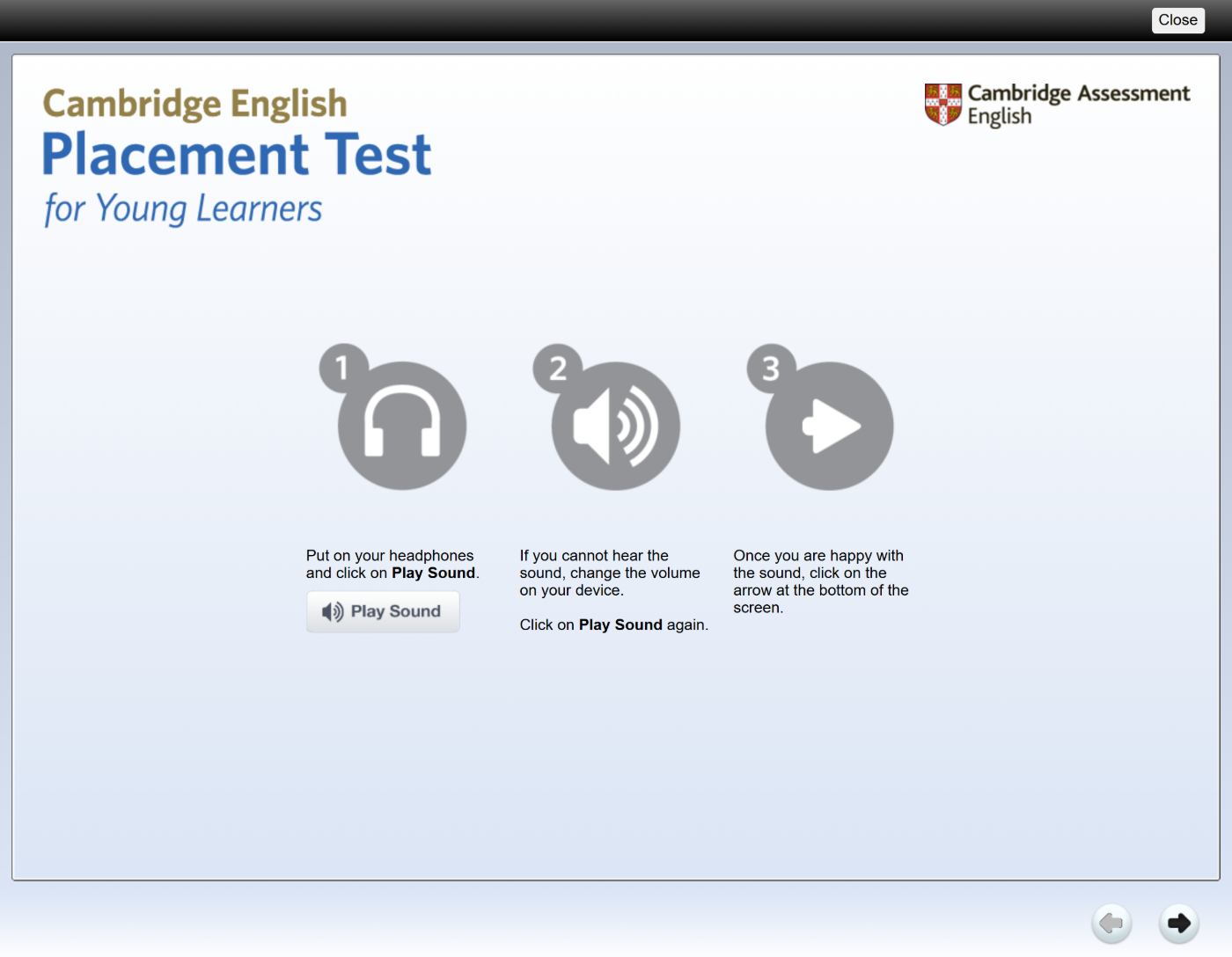
When your child says it is clear, use the arrow at the bottom right. View full size Instructions, then Start, and the test begins
One screen of instructions in English comes next: two parts (Listening and Reading/Writing), each recording played twice, and the arrow to move on. The last line is “Now click on Start.” From here it is the exam, so we do not show the question screens. Use the official sample below to see the same screens.
Read the result
Once the test is finished, the result is on the Results tab at the top of the same screen. It is marked automatically, so it appears straight away. It is not a score or a CEFR level: it tells you which exam to prepare next: Pre A1 Starters, A1 Movers or A2 Flyers.
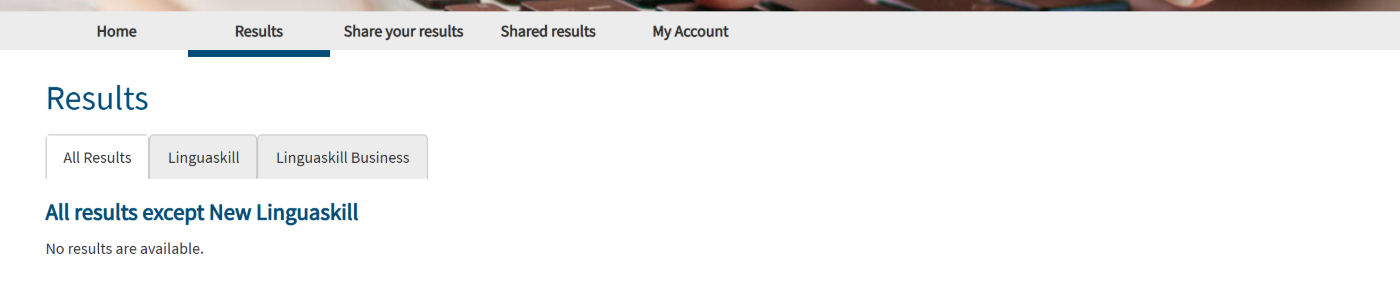
The Results tab. Before the test it simply says “No results are available.” View full size
What to expect while the test is running
No timer, and no sign of how much is left
Nothing counts down, so your child is not being rushed, and most finish in 30–40 minutes. Unlike the adult CEPT there is no progress indicator, so do not set a deadline; just let them work.
The number of questions differs from child to child
The test adapts: each answer decides how hard the next question is. It is normal for one child to get more questions, or take longer, than another.
Every recording is played twice
There is a pause to read the question first, then the same recording plays twice. Tell your child beforehand that missing it once is fine.
Each part starts with an example
Four listening parts of five questions each, and four reading and writing parts of up to ten questions each. Every new part opens with an example.
Ask them to answer even when they are unsure
The instructions say “Try to answer as many questions as you can.” The more a child shows of what they know, the more accurately the test can place them.
If something goes wrong
- The child's details went in wrong
- After Submit they cannot be changed from the child's screen. Tell the centre and we will correct them. Best of all, tell us before the test is taken.
- The internet dropped during the test
- Log back in with the same Username, Password and Institution ID and click the same Open on the Test Day Timeline. It resumes rather than starting over.
- The login email never arrived
- Once your payment is confirmed the centre sends the Username, Password and Institution ID automatically. It often lands in the junk or promotions folder, so look there first; if it is still missing, tell us and we will send it again.
- You have forgotten the password
- You reset this yourself on the Cambridge screen. Click Forgotten your password? on the sign-in screen, enter the Username and Institution ID, and click Continue. A reset link arrives by email; follow it, set a new password, and sign in with the new one.
- The account is locked
- Five wrong sign-in attempts in a row lock the account for 30 minutes. The username and password are case-sensitive, so check for a stray space if you pasted them. Try again once the 30 minutes have passed; if it still will not open, ask Cambridge support directly. Only Cambridge can unlock it.
- The test was taken but there is no result
- It may not have been finished, so nothing was submitted. Log back in and work through to the last screen. If it was finished and the Results tab is still empty, contact the centre.
Password resets and locked accounts are handled by Cambridge
Neither of these can be done by the centre. Reset the password yourself with Forgotten your password? on the sign-in screen, and if the account is still locked after 30 minutes ask Cambridge support directly. A login email that never arrived, or details that went in wrong, are ours.
The test is unavailable on scheduled maintenance days
The Cambridge test platform (Metrica) is taken down for scheduled maintenance from 08:00 to 12:00 UK time (roughly 16:00–21:00 in Korea), with minor updates for the rest of the UK working day after that. Do not book your child's test on these dates.
2026 maintenance days
25 February · 29 April · 15 July · 30 September · 25 November (all Wednesdays)
Try it with your child first
No preparation lessons are needed. But the screens are unfamiliar, so walk through the official Cambridge YLPT sample together once: the sound check and where the buttons are.
Open the official YLPT sampleThe sample is for practice and produces no result. It simply ends with “That is the end of the sample test.”
Contact
The centre can help with test dates, resending the login email, correcting your child's details, and results.
Written in August 2026 by working through the screens on a real YLPT account. What happens inside the test is based on the official Cambridge YLPT sample and Cambridge's documentation; the question screens themselves are not shown. Screen images are copyright Cambridge University Press & Assessment, and anything personal has been masked.